Contacts
Manage contacts in Kurrier and sync them with compatible devices using CardDAV.
Contacts
Kurrier gives your workspace a central address book for the people you email. You can manage contacts in the web app and use CardDAV to keep compatible contact applications in sync.
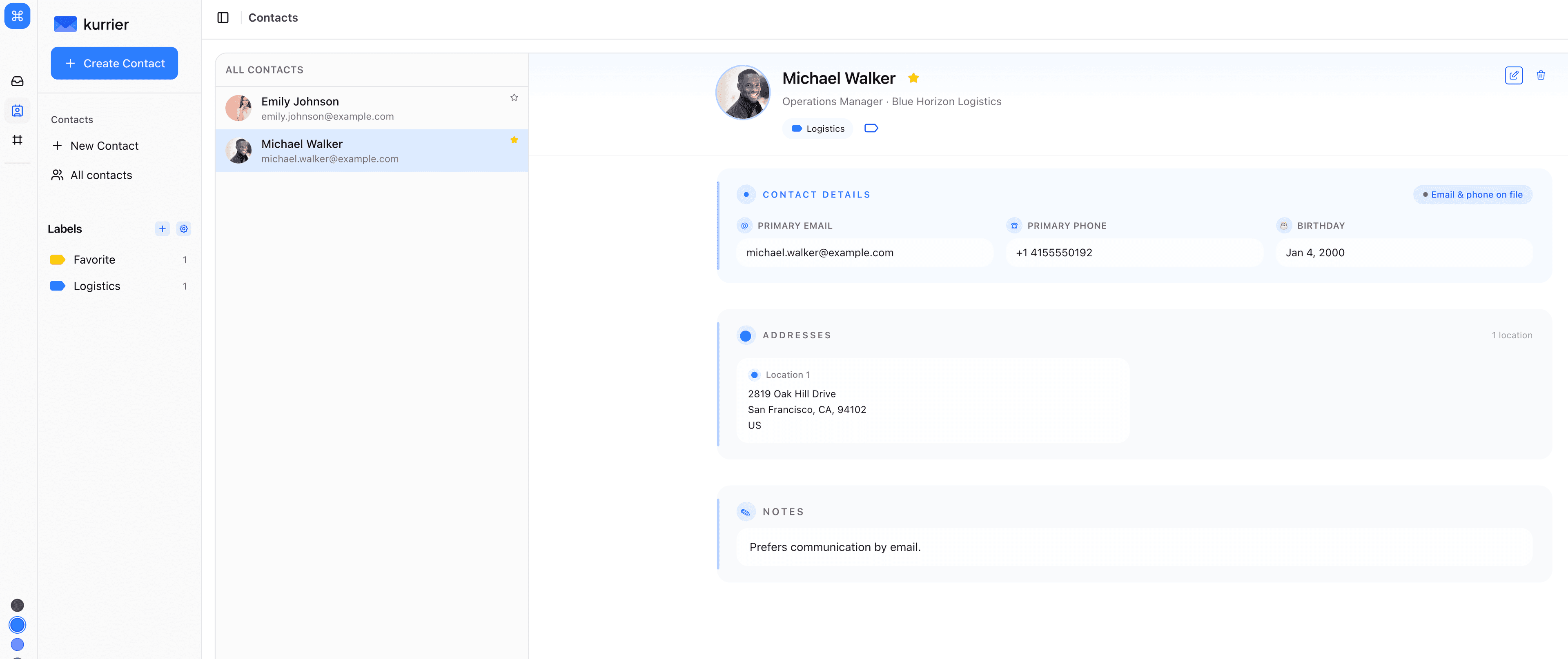
Kurrier contacts in the macOS Contacts app:
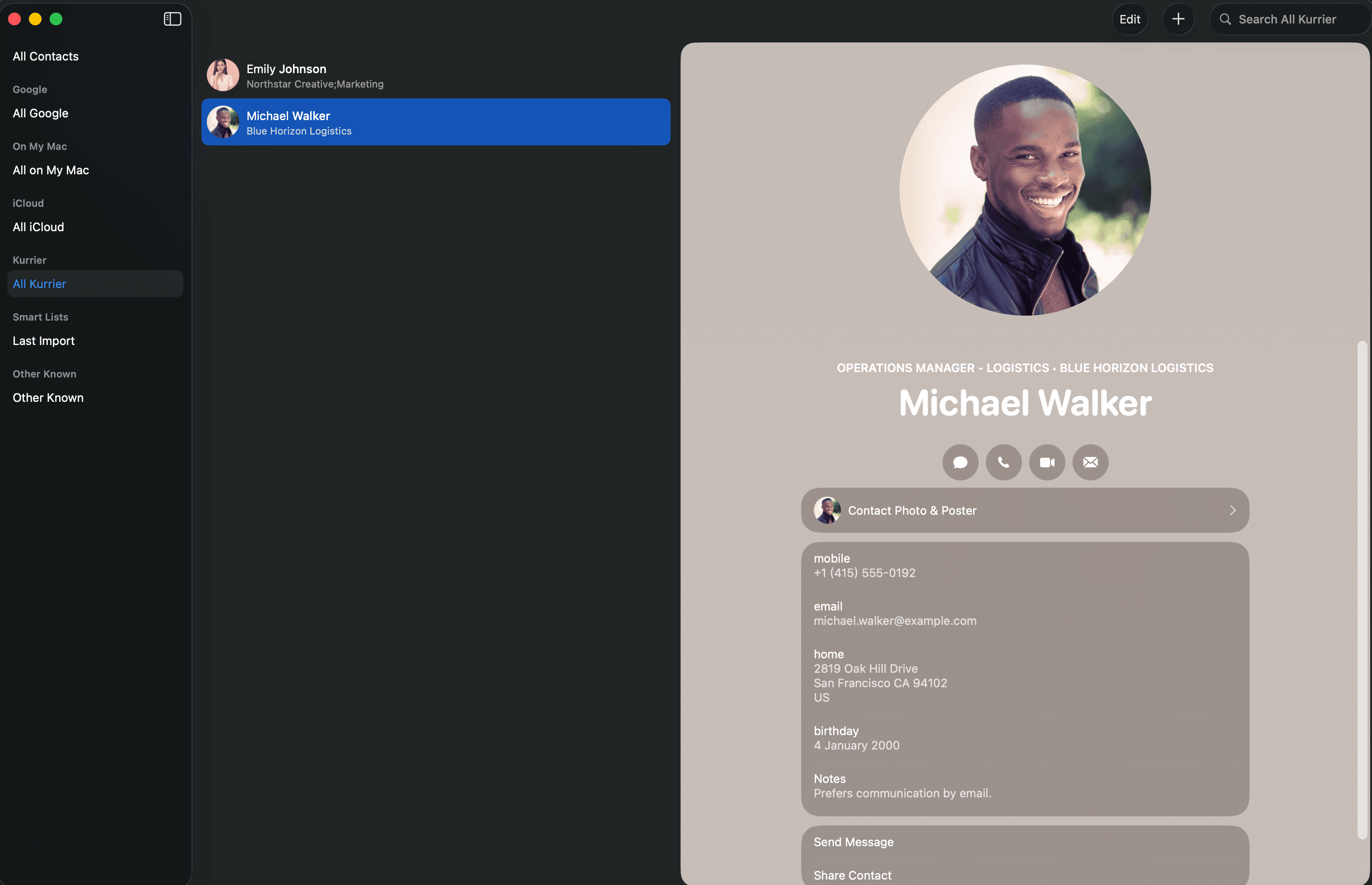
Manage contacts in Kurrier
From the Contacts section, you can:
- Create and update contacts
- Store email addresses, phone numbers, notes, and other details
- Add contact photos
- Organize contacts with labels
- Search contacts from the Kurrier dashboard
- Use saved contacts while addressing email
Changes made in Kurrier are available to connected CardDAV clients after their next sync. Changes made in a connected client are sent back to Kurrier.
Sync contacts with another app
Kurrier supports CardDAV, an open standard used by many contact applications. Compatible options include:
- Apple Contacts on iPhone, iPad, and macOS
- Android contact apps through a CardDAV client such as DAVx⁵
- Thunderbird
- Other applications with CardDAV support
To find your connection details:
- Open Settings → Sync Services → Contacts.
- Copy your CardDAV username and server details.
- Select Reveal Password to view or copy the sync password.
- Add a new CardDAV account in your contact application using those details.
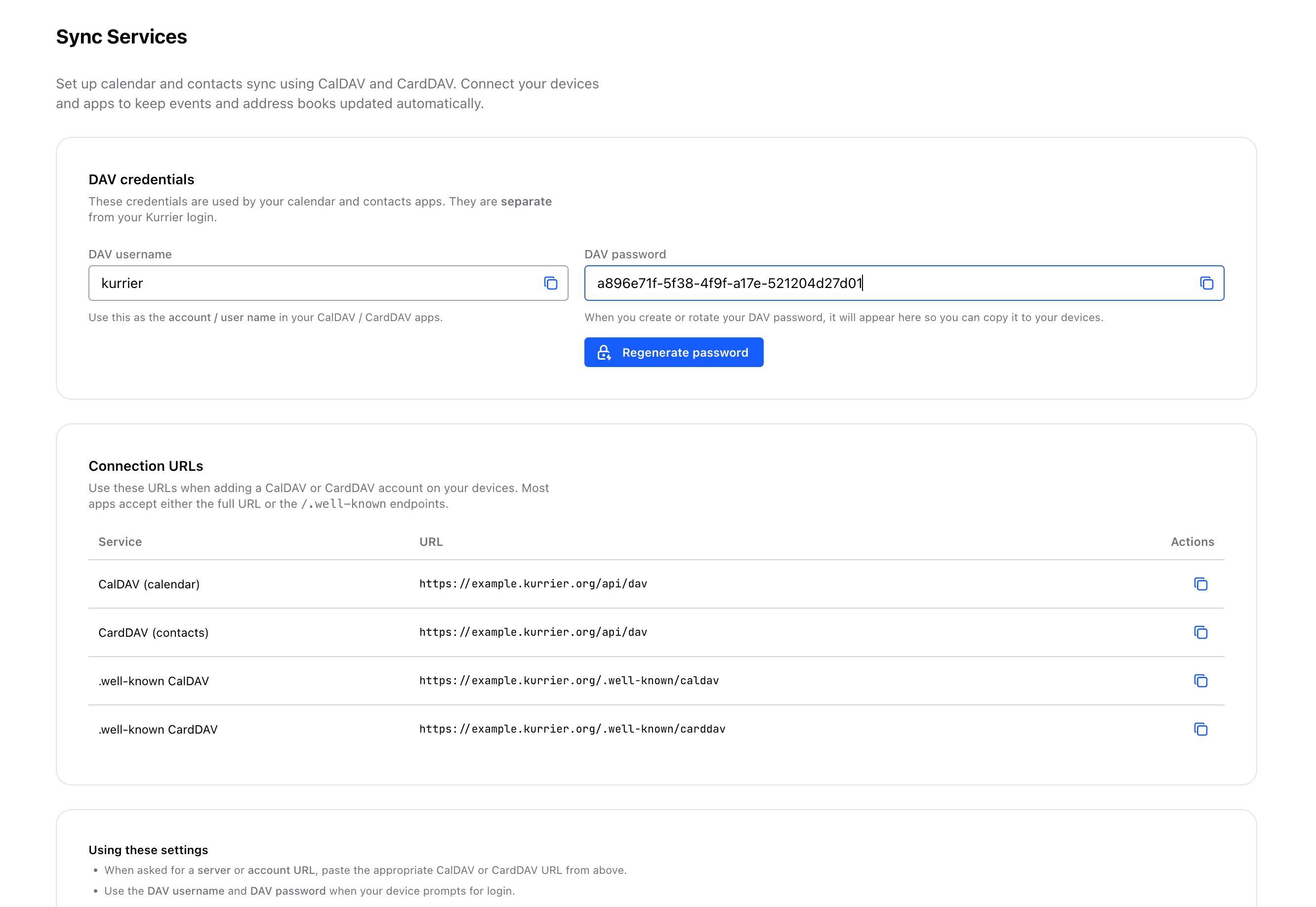
Your CardDAV password provides access to your synced contacts. Keep it private and do not send it in a support request.
Labels and groups
Kurrier supports labels for organizing contacts. A contact can have more than one label, and labels remain searchable in the Kurrier web app.
Some CardDAV applications do not display categories or groups consistently. If a label is visible in Kurrier but missing from another app, the client may not support that field fully.
Contact photos
Kurrier supports contact photos through standard vCard data. Photo behavior can vary between clients, particularly with older applications.
Troubleshooting
New contacts are slow to appear
Some devices sync CardDAV accounts periodically rather than immediately. Refresh the account or check the device's sync settings.
A photo or label is missing
The contact remains stored in Kurrier, but the connected application may not support every CardDAV field. Check the same contact in the Kurrier web app to confirm its current data.
The contact app cannot connect
Copy the latest connection details from Settings → Sync Services → Contacts and re-enter them carefully. If you previously regenerated a password, make sure the client is using the new one.
If the problem continues, contact Kurrier Support and include the device, operating system, and contact application you are using.