API Authentication
Create and securely use API keys with the Kurrier hosted API.
API Authentication
Kurrier provides an HTTP and JSON API for supported mail, identity, webhook, and integration workflows. Requests are authenticated with API keys created from your Kurrier account.
The hosted API is available under your Kurrier host:
https://YOUR_KURRIER_HOST/api/kurrierReplace YOUR_KURRIER_HOST with the host used by your Kurrier workspace. Individual API guides provide the complete endpoint path for each operation.
Create an API key
- Sign in to Kurrier.
- Open API Keys from the workspace settings.
- Select Create API key.
- Enter a descriptive name, such as
Support integrationorInbound importer. - Choose the minimum scopes or restrictions required by the integration.
- Create the key and copy its value to a secure location.
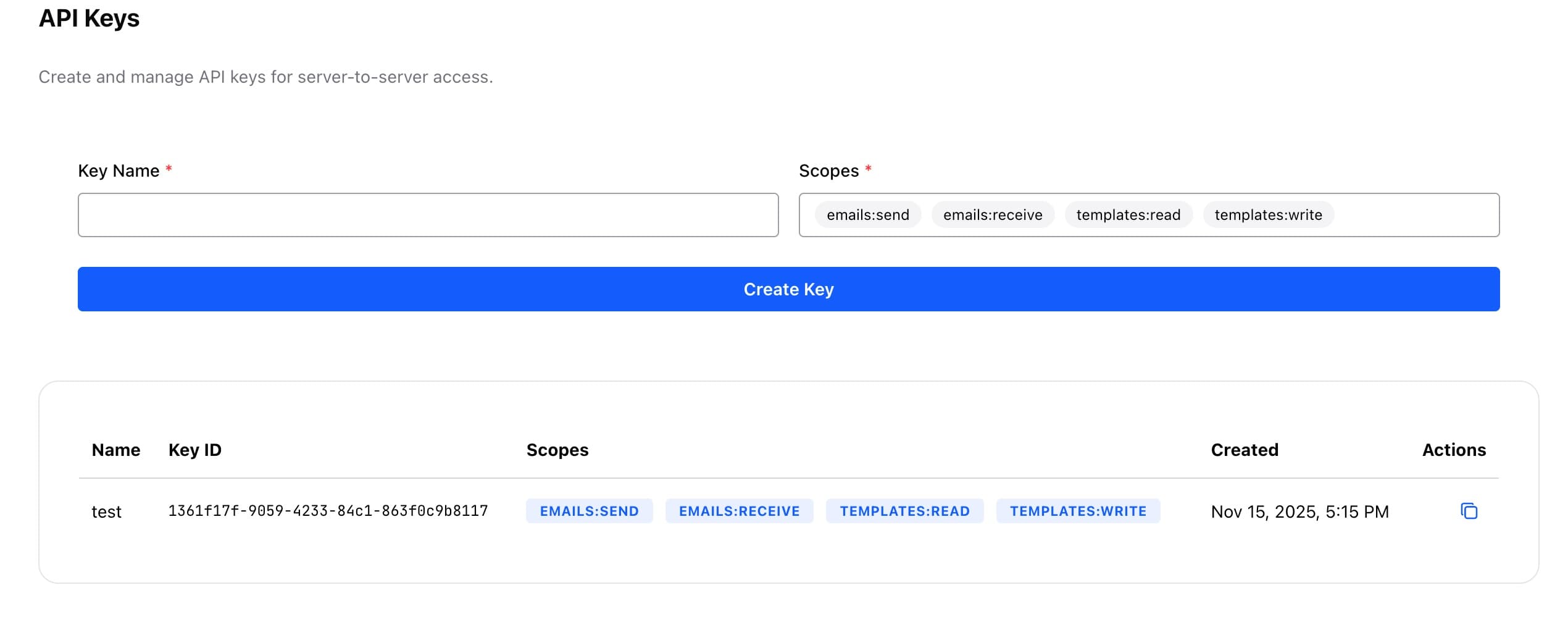
Treat an API key like a password. Do not commit it to source control, place it in client-side browser code, include it in a screenshot, or send it in a support request.
If the current API-key screen enables broad access by default, use the key only for a trusted server-side integration and review its permissions as more granular scopes become available.
Authenticate a request
Include the API key as a bearer token in the Authorization header:
Authorization: Bearer YOUR_API_KEYFor example:
curl 'https://YOUR_KURRIER_HOST/api/kurrier/ENDPOINT' \
  -H 'Authorization: Bearer YOUR_API_KEY' \
  -H 'Accept: application/json'
Replace ENDPOINT with the route documented for the operation you want to perform.
For requests containing JSON, also send:
Content-Type: application/jsonSome endpoints accept another content type. For example, the Inbound API accepts raw email using message/rfc822.
How access is determined
An API key acts as the Kurrier user who created it. It can access only the workspaces, identities, and resources available to that user, subject to the key's scopes and restrictions.
Creating a key does not grant additional workspace privileges. If an API call returns a permission error, confirm both the user's workspace access and the key's configured permissions.
Create keys from a dedicated integration account when practical. This avoids tying important automation to a person's day-to-day account access.
Store API keys securely
Use a server-side secret store or your deployment platform's protected configuration. Avoid storing keys in:
- Frontend JavaScript or mobile application bundles
- Public or private Git repositories
- Plain-text configuration checked into source control
- Logs, analytics events, or error reports
- Shared documents or chat messages
Do not use a NEXT_PUBLIC_ or similar public environment variable for a Kurrier API key.
Rotate an API key
Rotate keys periodically and whenever a key may have been exposed:
- Create a replacement key with the required access.
- Update the integration to use the replacement.
- Test a normal API request.
- Revoke the old key in Kurrier.
This order avoids unnecessary interruption while ensuring the old credential no longer works.
Revoke unused keys
Remove or revoke keys that are no longer needed. Use clear names so you can identify which application depends on each key before disabling it.
Revoking a key stops future requests made with it. It does not delete mail or other data previously created through the API.
Troubleshooting
401 Unauthorized
Check that:
- The header uses the exact
Bearer YOUR_API_KEYformat. - The key was copied completely and has not been revoked.
- Your secret store did not add quotes, whitespace, or a newline.
- The request is being sent to the correct Kurrier host.
403 Forbidden
The key is recognized, but it does not have access to the requested operation or resource. Review the key's scopes and the creating user's workspace role and identity access.
The key was lost
Kurrier Support cannot safely retrieve and send an existing secret to you. Create a replacement key, update the integration, and revoke the lost key.
The key may have leaked
Revoke it immediately, create a replacement, and review the integration's logs and recent API activity for unexpected use.
If authentication continues to fail, contact Kurrier Support with the endpoint, response status, and approximate request time. Never include the API key itself.